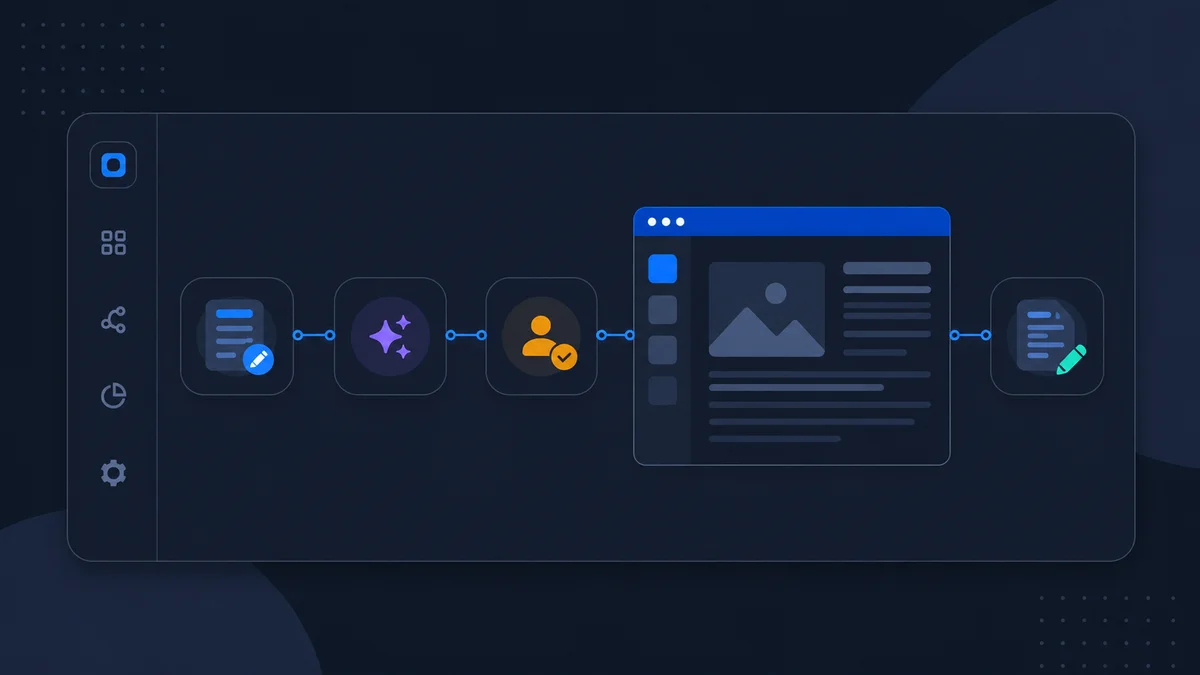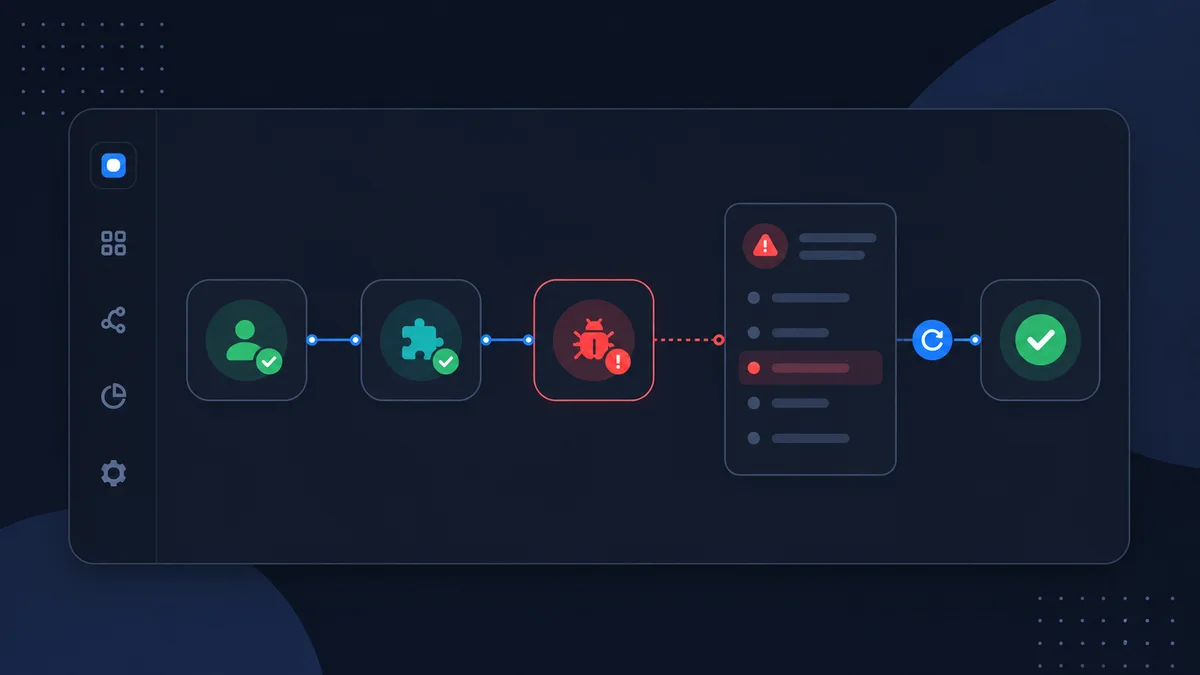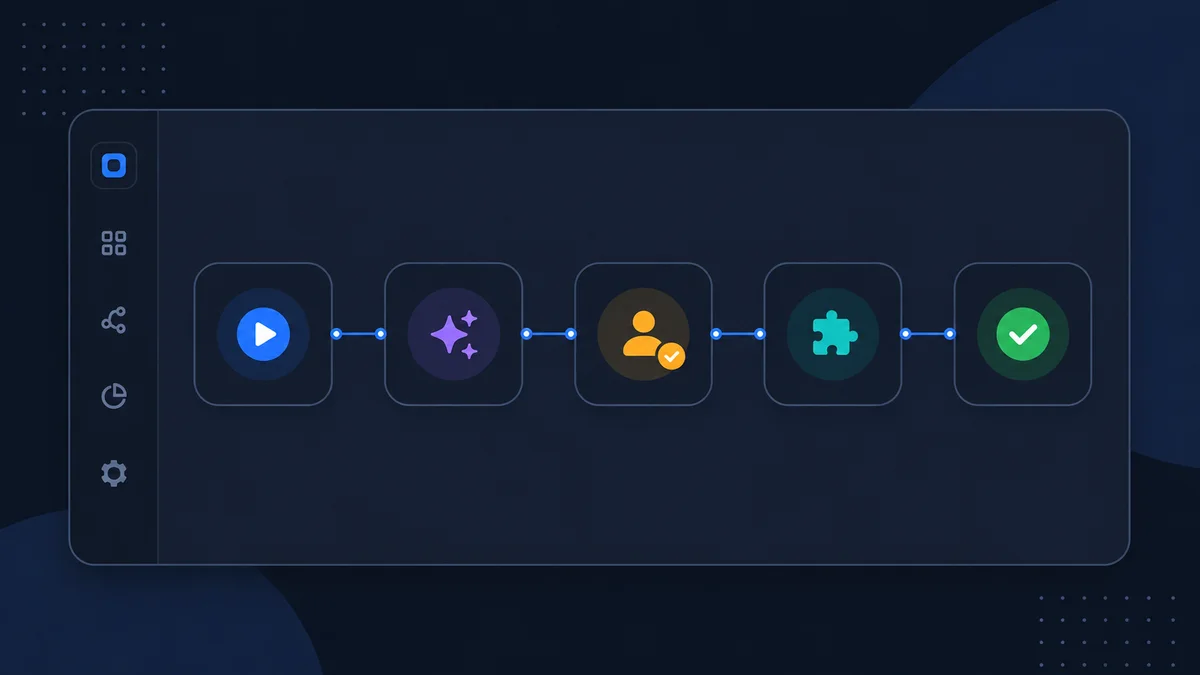
JustFlows turns a useful idea into a workflow that can run repeatedly, use connected services, pause for human judgment, and leave a visible history behind. Instead of asking an AI model to complete an isolated task, you define how the work starts, which steps should happen, what data moves between them, and what should happen when something needs review or fails.
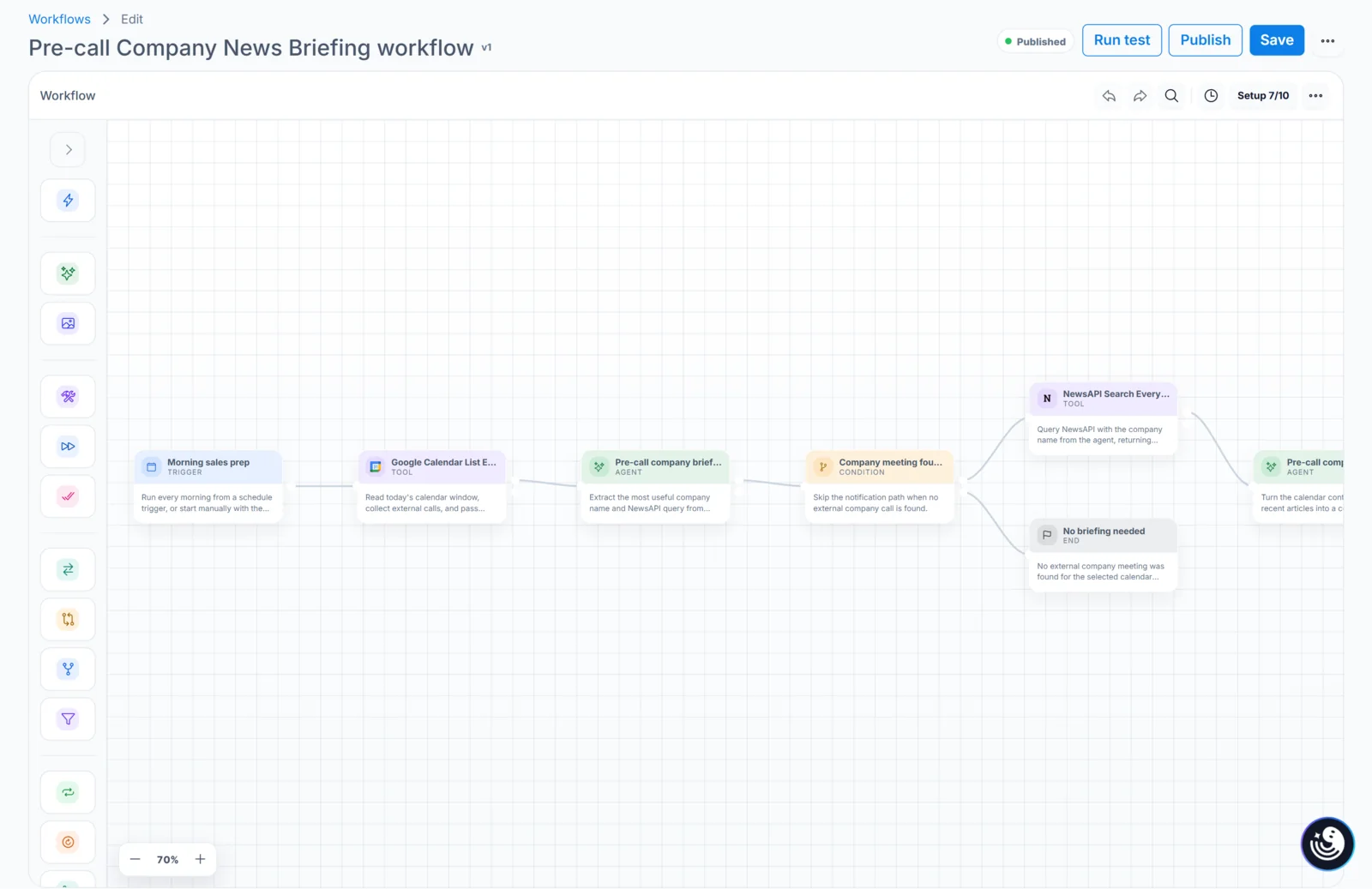
This guide gives you the product mental model before you build anything. We will use a simple pre-call briefing as the example: every morning, the workflow checks a calendar, finds an external meeting, searches for recent company news, asks an AI agent to prepare a briefing, and sends the result by email.
The five parts of a workflow
- A trigger starts the work. A trigger can be manual, scheduled, webhook-based, or connected to an incoming event such as email. Our briefing uses a daily schedule, but it can also be run manually while it is being tested.
- Nodes perform individual jobs. A node can call an agent, run a tool, evaluate a condition, wait, request approval, process a list, or end the run. Keeping each node focused makes the workflow easier to understand and repair.
- Context carries data forward. The calendar result becomes input for the company-selection step. The selected company becomes input for the news search. Those articles then become context for the briefing agent.
- Connections authorize external services. Google Calendar, NewsAPI, and Gmail are connected once at workspace level. Workflow nodes use those saved connections without placing passwords or tokens on the canvas.
- A run records what happened. Every execution has a status, input payload, step history, output, timing, and any error details. This is what turns an automation into something your team can operate.
Agents and tools do different work
An agent is useful when the step requires interpretation: selecting the likely company from a meeting title, summarizing several articles, classifying a support request, or producing structured content. A tool is better when the action is deterministic: load calendar events, execute a database query, create a WordPress draft, or send a Slack message.
A reliable workflow usually combines the two. Let tools retrieve and change data; let agents reason over the data; then place approval before an important external action. Avoid asking an agent to simulate an integration when a real tool can perform the action and return a verifiable response.
Workspace assets keep workflows reusable
Workflows do not need to contain every instruction and credential themselves. JustFlows separates several reusable assets:
- AI accounts provide access to supported AI providers and models.
- Agents define a role, instructions, model behavior, and available capabilities.
- Prompts and skills hold reusable guidance for common tasks.
- Knowledge bases give agents access to approved reference material.
- Integrations and MCP servers expose external actions without copying credentials into each workflow.
This separation matters when several workflows use the same service or policy. A connection can be rotated in one place, and an agent or skill can be improved without duplicating the same instructions across every canvas.
Testing is separate from publishing
Use Run test while building. A manual payload or saved test scenario lets you inspect the workflow with controlled data before an automatic trigger is active. Start with a harmless case: read records, create drafts instead of published content, use a test destination, or deliberately choose a scenario that performs no external write.
Publishing marks the saved workflow as ready for its configured trigger. It should happen after required connections are available, the expected path has completed, and dangerous actions are protected by a review or a clear error route. Unsaved canvas changes are not part of an earlier run, so save before judging whether a fix worked.
Reading a run
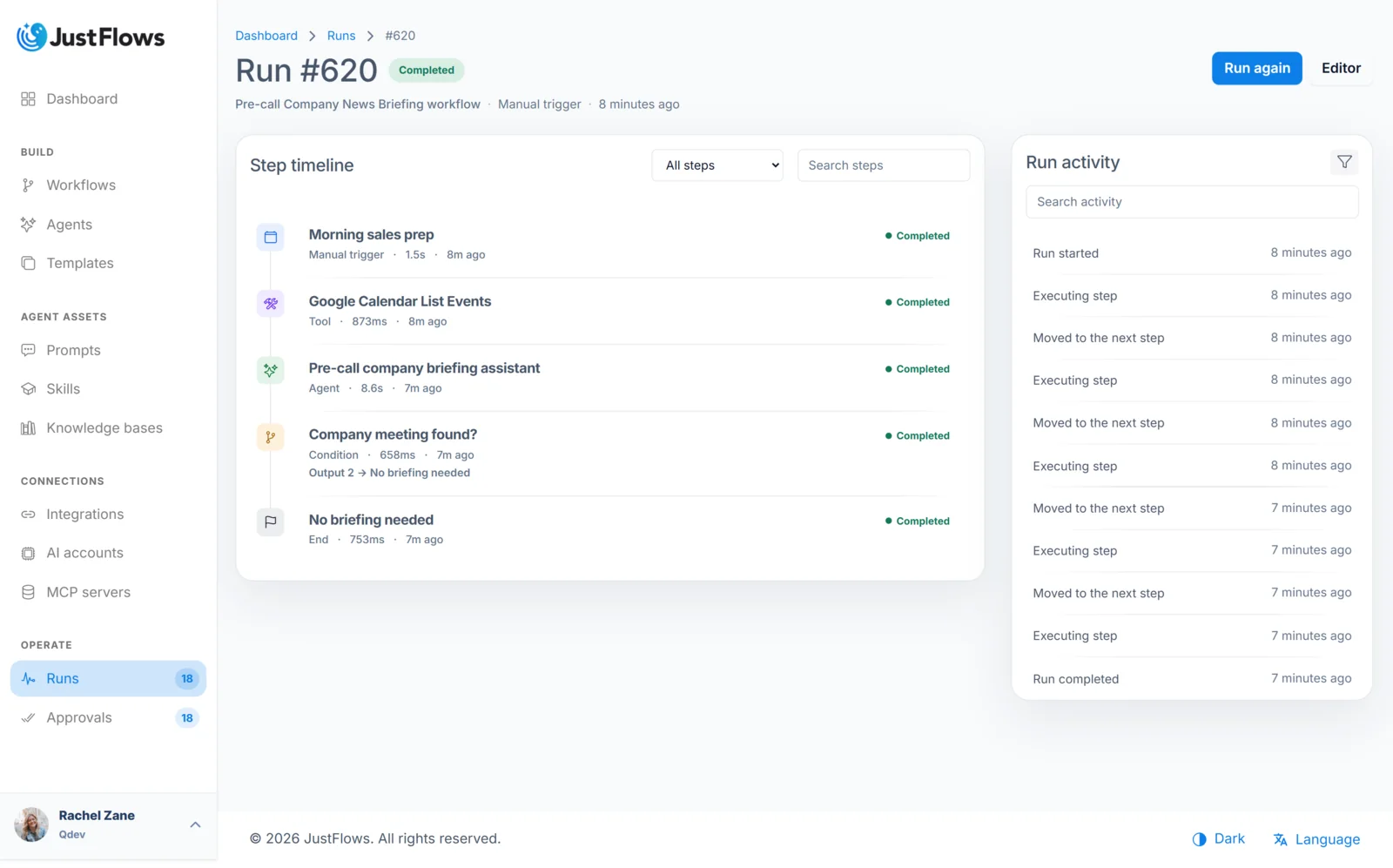
Open Runs to see executions across the workspace. A run can be queued, running, waiting, completed, canceled, or failed. Open one run to inspect the steps in order. Each step shows the node type and status, and its details expose the inputs, outputs, and context available at that point.
For our briefing workflow, a healthy trace should show calendar data first, then the chosen company query, the articles returned by NewsAPI, the generated briefing, and finally the Gmail response. If the workflow ends early because there are no external meetings, that can still be a successful result when the workflow was designed with that intentional path.
A practical first-workflow checklist
- Write one sentence describing the outcome.
- Choose the event that should start the work.
- Use a separate node for each clear responsibility.
- Use tools for external reads and writes.
- Use agents for interpretation and content generation.
- Add approval before public, customer-facing, financial, or destructive actions.
- Test with safe data and inspect the complete run trace.
- Publish only after the expected path and failure behavior are understood.
You do not need to design a large automation on the first day. Build one narrow path that saves real time, operate it for a few runs, and expand it only when the run history shows what is missing.