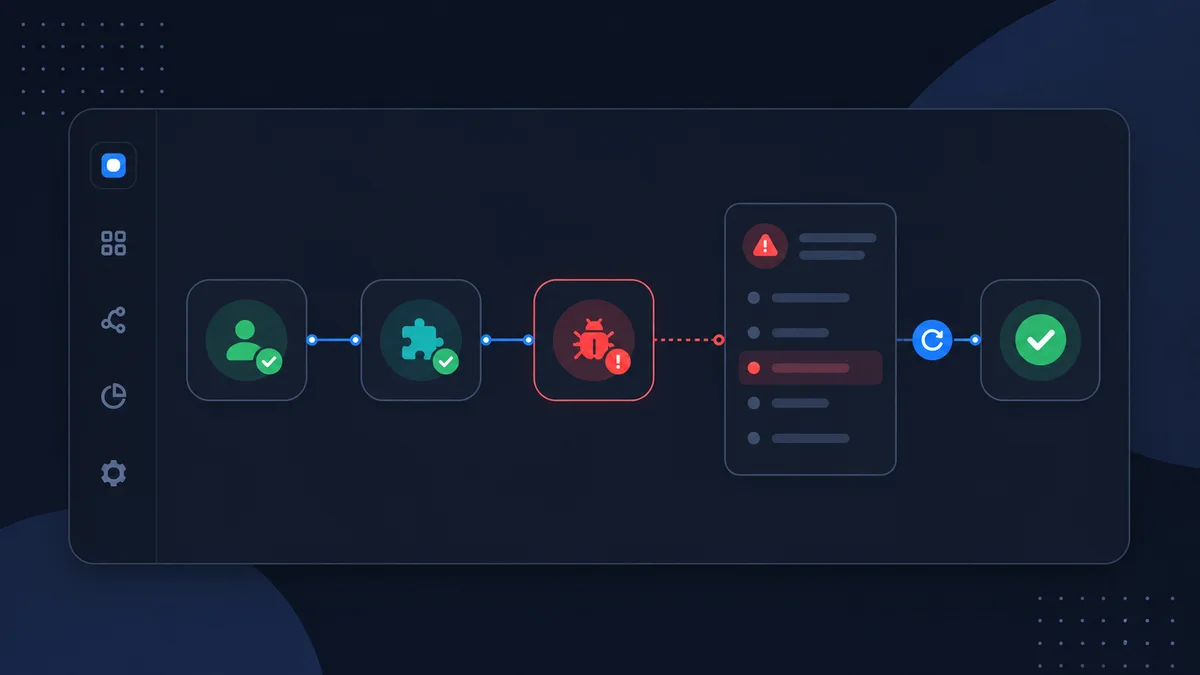
A failed workflow is useful evidence. JustFlows records the run, the step where execution stopped, the context available at that moment, and the error returned by the agent, tool, or workflow runtime. The goal is not to retry immediately; it is to identify whether repeating the action is safe and whether anything must change first.
This guide explains a practical debugging process and when to use Retry step versus Run again.
Start with the run status
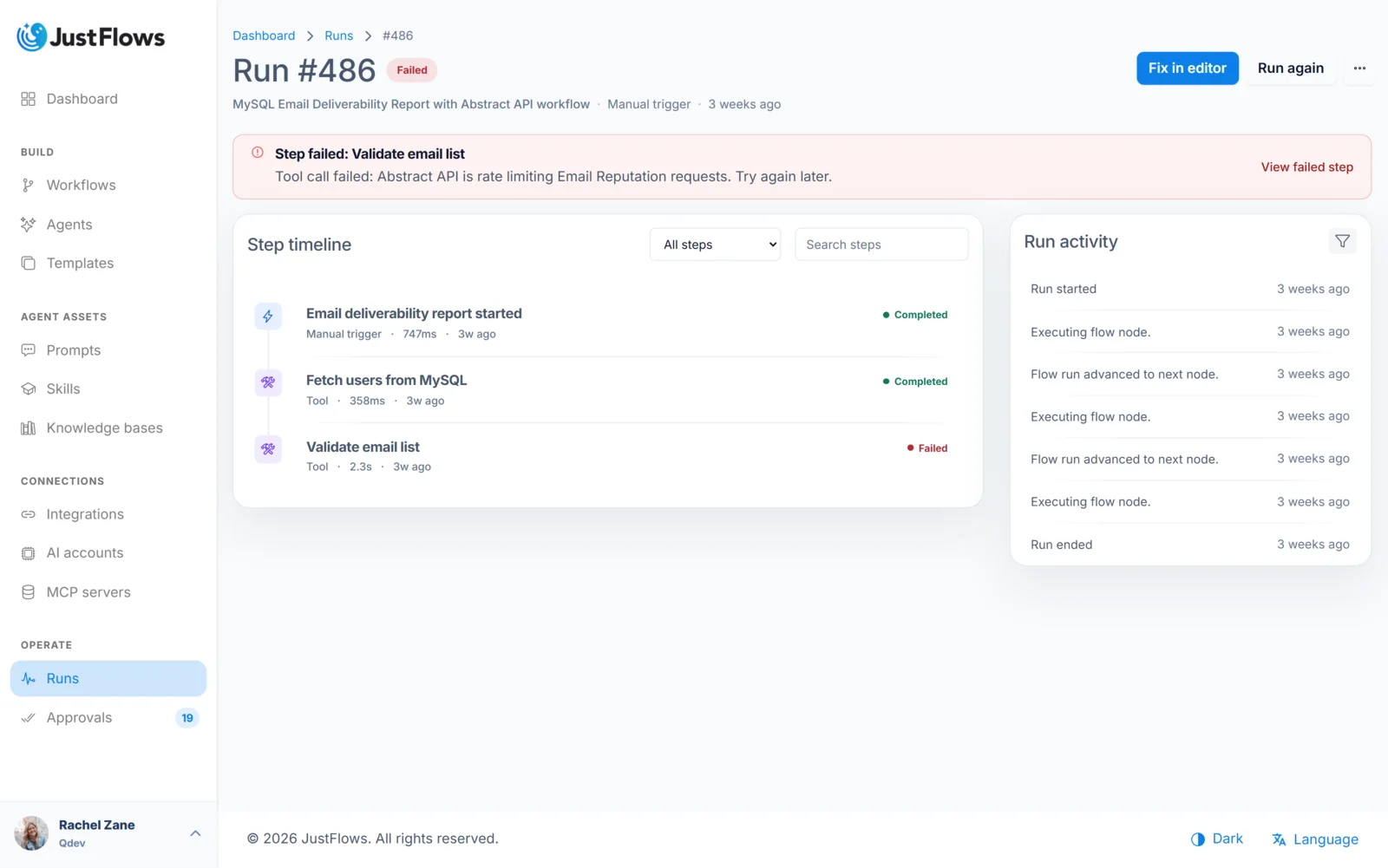
Open Runs and select the failed execution. The run detail page shows the workflow, trigger source, start time, duration, status, and ordered step history. Read the main failure notice first, then find the first failed step.
Not every incomplete-looking run is failed:
- Waiting usually means the workflow is paused for approval, input, or another resumable event.
- Canceled means execution was intentionally stopped.
- Completed can include an intentional early End path, such as “no matching records.”
- Failed means a step could not finish and no successful recovery path completed the run.
Inspect the failed step
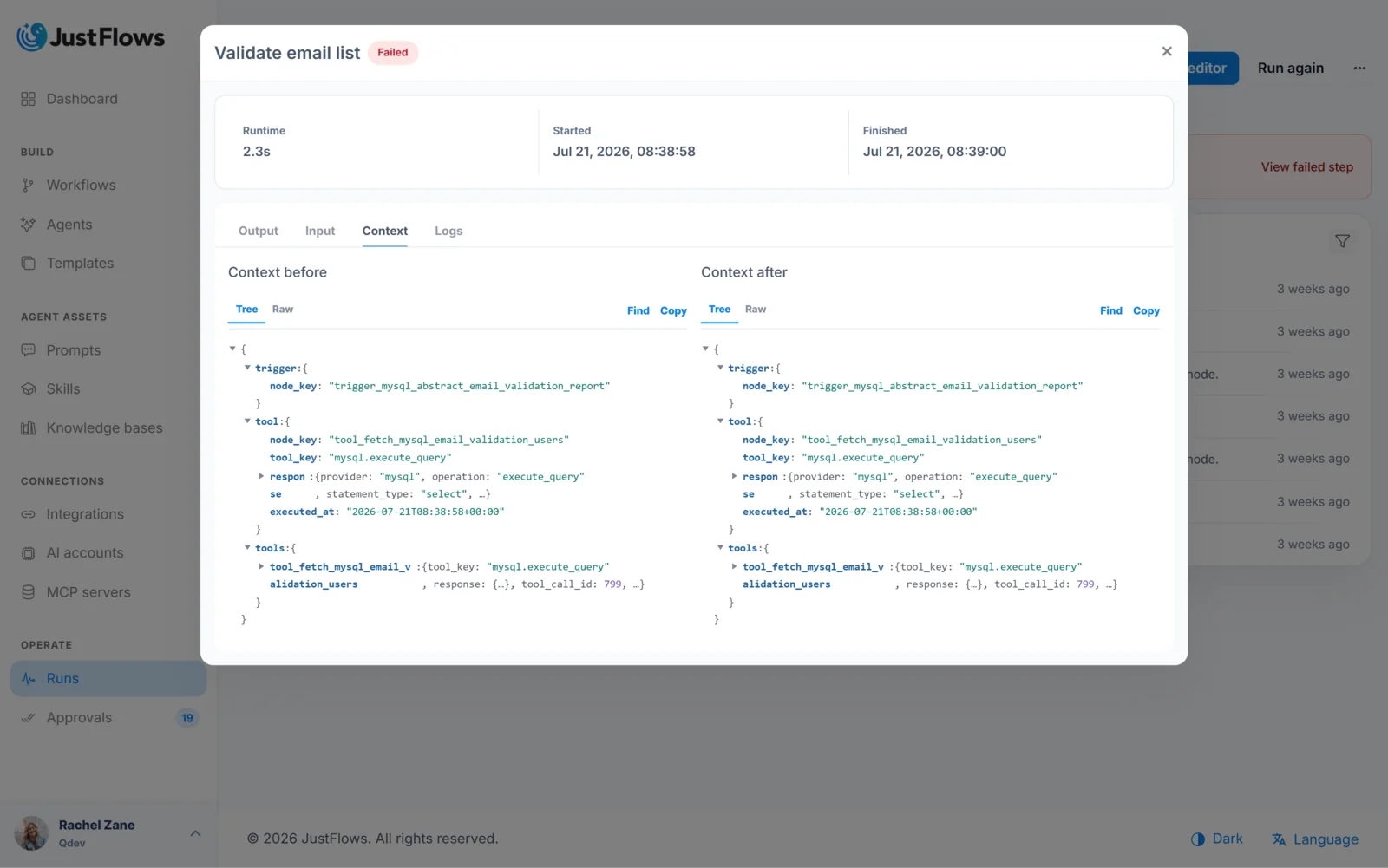
Open the failed step and answer these questions in order:
- What input reached the node? Confirm required fields are present and have the expected type and value.
- What configuration did the node use? Check the selected agent, tool action, connection, mapper, condition, or workflow setting.
- Did the node return partial output? A provider may return a useful error body even when the action failed.
- What was the exact error? Prefer the specific provider or validation message over a general assumption.
- Could the action already have happened? A timeout after an external request can be ambiguous. Verify the destination before repeating it.
Compare the failed step with the previous successful step. If the previous output is correct but the failed input is missing a value, the problem is probably a binding or mapping issue between them.
Classify the failure
Most failures belong to one of five groups:
- Input failure: required data is missing, malformed, too large, or outside an allowed range.
- Configuration failure: a node points to the wrong context path, action, agent, model, destination, or condition.
- Connection failure: credentials expired, permissions changed, or the external account is unavailable.
- Provider failure: rate limit, timeout, temporary outage, or rejected payload.
- Logic failure: the workflow entered a path that was not designed for the supplied data.
The category determines the repair. Reconnecting an integration will not fix an invalid mapper. Editing an agent prompt will not fix a revoked OAuth permission.
Fix the smallest responsible surface
If the workflow configuration is wrong, open the builder from the run, make the focused correction, and save. Remember that the failed run used the saved workflow version available when it started. Unsaved changes in the editor cannot repair that historical execution.
If the connection is wrong, update or reconnect it at workspace level and use the integration test action. If the input is wrong, improve trigger validation or create a corrected test payload. If the provider is temporarily unavailable, wait until the service is healthy and confirm that repeating the call is safe.
Choose Retry step or Run again
Retry step is useful when the failed node supports resuming from that point and the earlier run context is still valid. Typical examples include a temporary provider failure or a connection that has just been repaired. The retry continues from the failed point instead of repeating all successful upstream work.
Run again starts a new attempt using the run payload. Use it when an earlier node must produce different data, the workflow logic has changed materially, or you want to validate the complete path from the beginning.
Before either action, consider duplicate risk. If the failed step may have created a record before timing out, check the external service. Repeating a “create” or “send” action without verification can produce duplicate posts, tickets, emails, charges, or files.
Compare attempts
When a run has retry history, use the attempt information to compare the original and retried result. Confirm that the failed step changed to completed and that downstream steps received the expected output. Do not stop at the first green status if the external destination contains the wrong or duplicate result.
If the same error repeats, stop retrying and revisit the category. Repeated validation failures usually require input or mapping changes. Repeated authorization errors require the provider connection or permissions to be fixed. Repeated AI output failures may require a clearer response contract, a more suitable model, or smaller context.
Ask Flowy for a focused explanation
When Flowy is available, open the workflow and ask it to explain the failed step or suggest a focused repair. Give it the goal of the node and keep the request bounded. Review any proposal before applying it, save the workflow, and start a new test. Flowy should help interpret evidence; it should not replace checking the actual provider response and external result.
Design future recovery
Once the immediate issue is resolved, decide whether the workflow should handle that class of failure automatically next time:
- Add an error route that sends a concise operator notification.
- Validate required input before an expensive or external step.
- Use a condition for an expected no-data case.
- Track processed identifiers to prevent duplicate writes.
- Put approval before a risky retry or fallback action.
- Save the failing payload as a regression test when it contains no sensitive data.
Debugging checklist
- Identify the first failed step.
- Inspect its input, configuration, partial output, and exact error.
- Verify whether an external action already occurred.
- Classify the failure before changing anything.
- Apply and save the smallest correction.
- Choose retry-from-step or full rerun based on what must be repeated.
- Verify the new run and the external destination.
- Add validation, tests, or an error route to prevent recurrence.