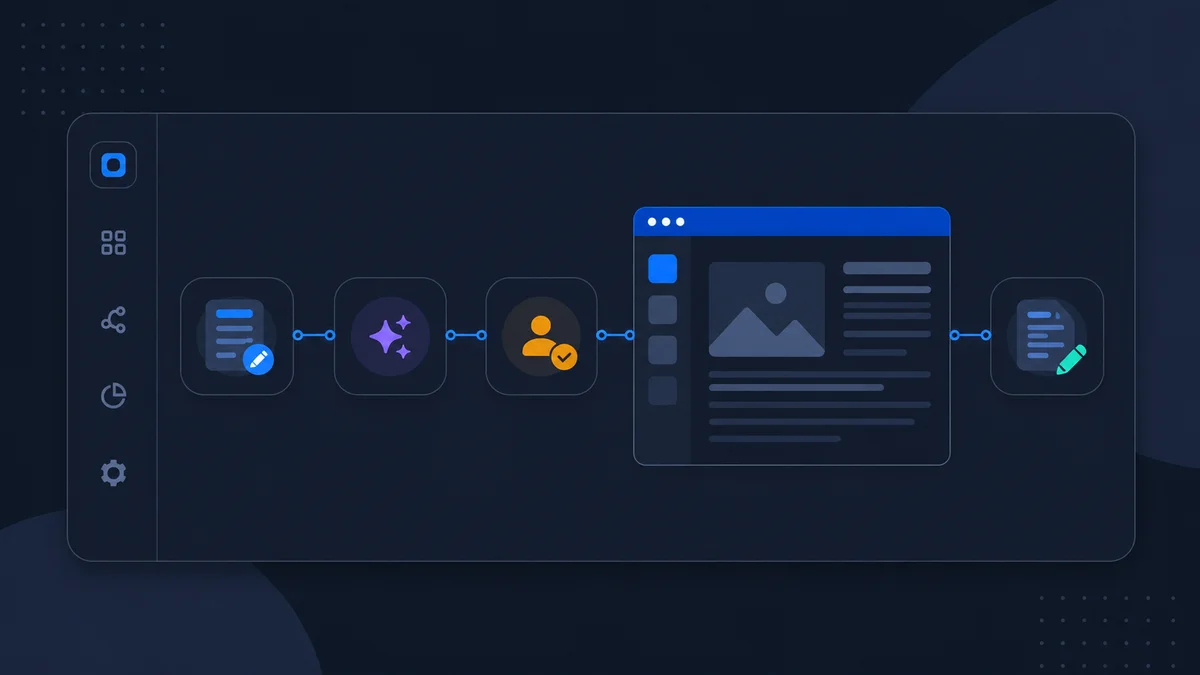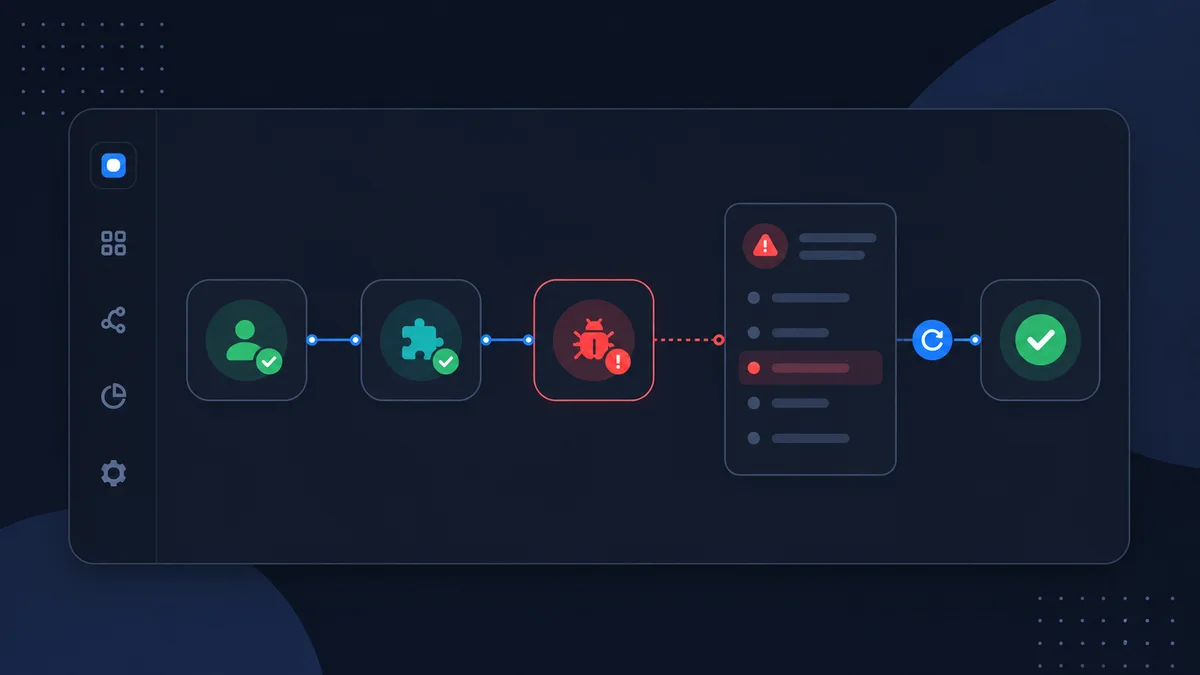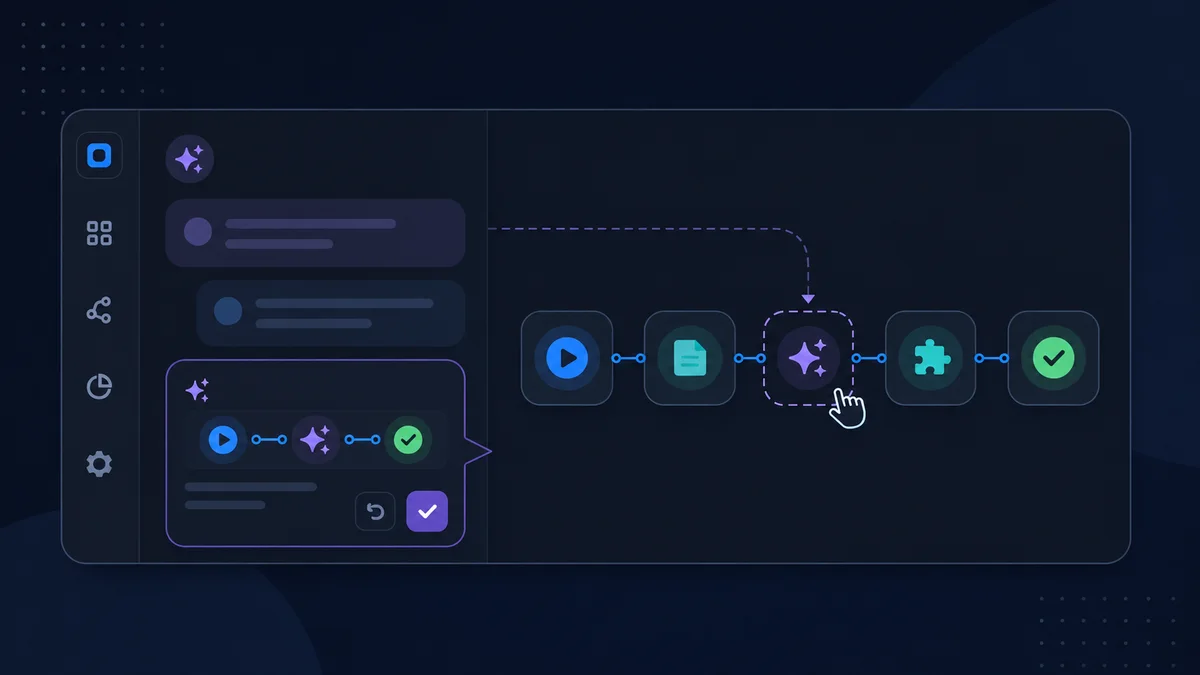
Flowy is the workflow assistant inside the JustFlows builder. It can explain a selected step, suggest fixes, propose the next useful step, or prepare structured changes to the canvas. You remain in control: Flowy proposes, you review and apply, and the workflow still needs to be saved and tested.
This guide shows how to get a useful first proposal, evaluate it, and turn it into a working workflow without treating an AI-generated canvas as automatically production-ready.
Before you start
Flowy must be enabled for the product and included in your workspace plan. The workspace also needs access to the configured Flowy model. If the launcher is not visible in the builder, check availability with your workspace or product administrator.
You can use Flowy in a new draft or an existing workflow. For a first attempt, start with an empty draft and a narrow outcome.
Write a build request with boundaries
A good request describes the outcome, input, important decisions, external systems, and safety rules. Avoid asking only for “a marketing automation” or “an AI support flow.” Flowy has to guess too much, and the resulting canvas will be hard to verify.
For example:
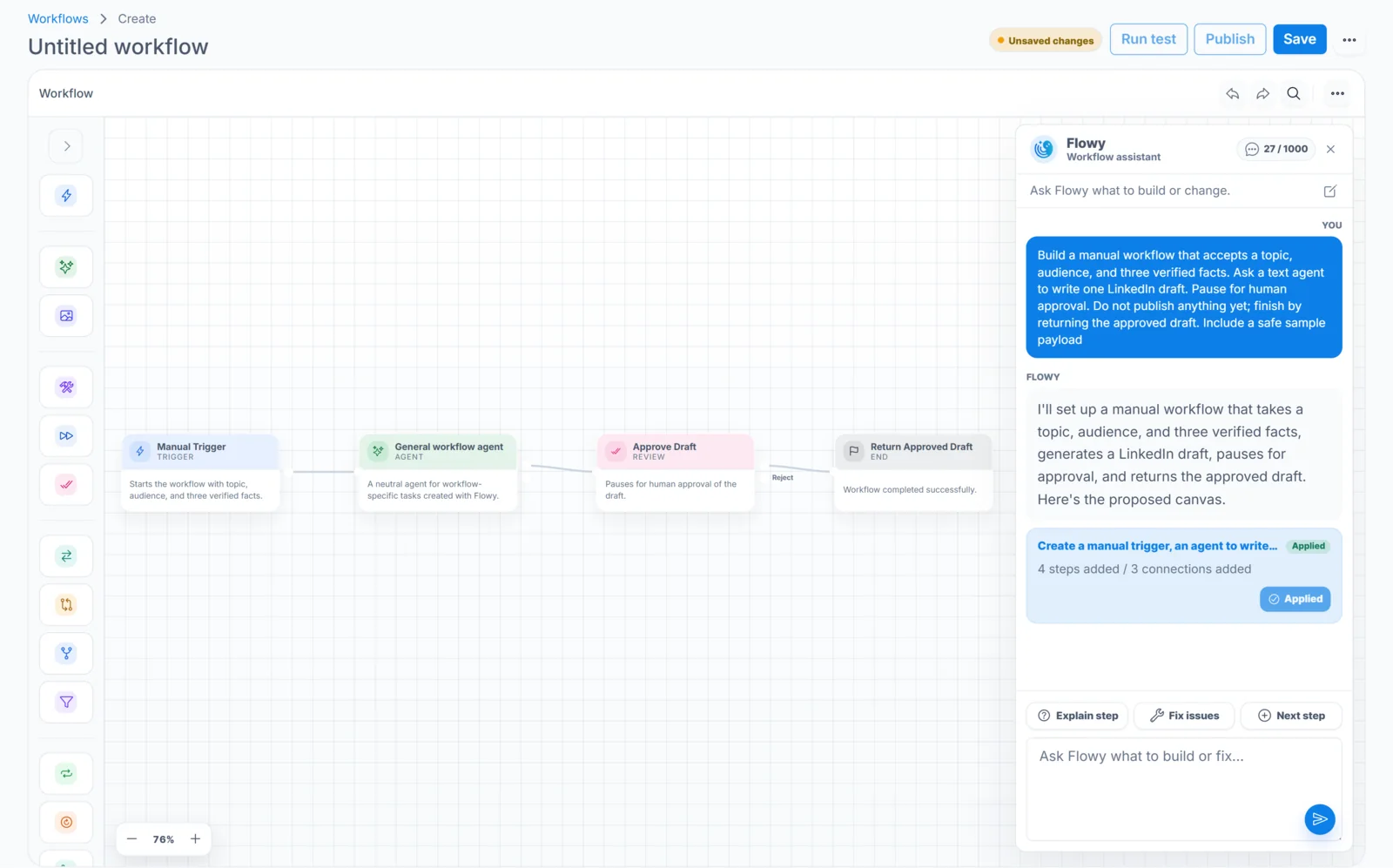
Build a manual workflow that accepts a topic, audience, and three verified facts. Ask a text agent to write one LinkedIn draft. Pause for human approval. Do not publish anything yet; finish by returning the approved draft. Include a safe sample payload.
This request establishes what starts the workflow, what the agent may use, where review belongs, and what must not happen.
Review the proposal before applying it
Flowy may answer with guidance or a proposal containing canvas changes. Read the summary, proposed nodes, setup requirements, warnings, and any validation issues. Confirm that:
- The trigger matches the requested input source.
- The proposed agent has one clear responsibility.
- External tools use the intended action rather than a vague substitute.
- Approval appears before the external write.
- All branches have an intentional destination.
- No credential or secret has been placed in node configuration.
If something is wrong, refine the request before applying. Tell Flowy exactly what to change, such as “keep the workflow manual,” “remove the publishing tool,” or “route rejected drafts to a separate End node.”
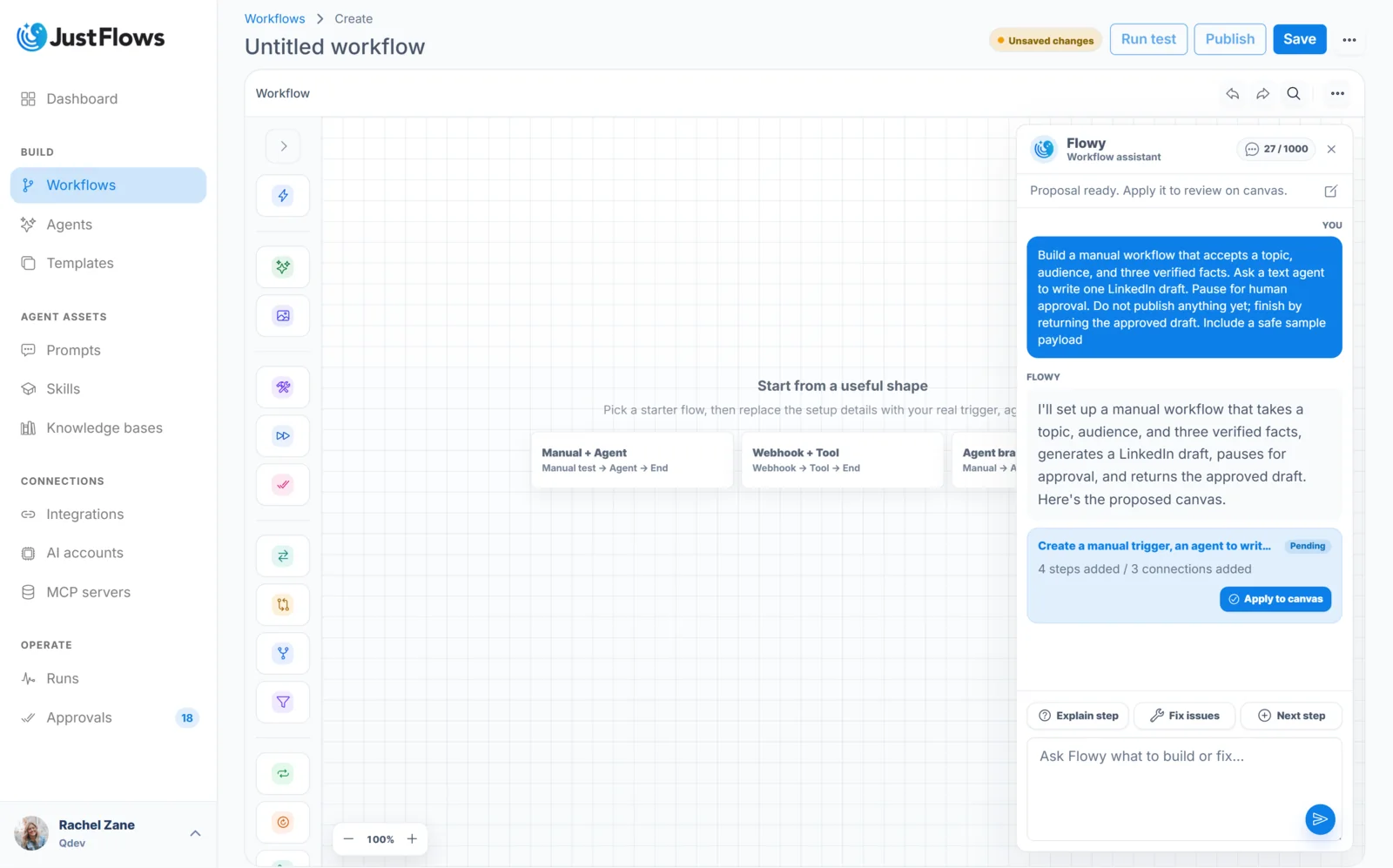
Apply, inspect, and save
Applying a proposal changes the canvas in the editor. It does not prove that the workflow is configured correctly. Inspect every added or modified node:
- Open the trigger and verify its mode and sample input.
- Open the agent and select a runnable workspace agent if setup is still required.
- Review input bindings and expected structured output.
- Open each tool and select the correct workspace connection.
- Check approval content and every outgoing branch.
- Save the workflow.
Flowy can suggest a tool even when the required integration is not connected. That is useful planning information, but the workflow will not be ready until the connection exists and required fields are mapped.
Test with a controlled payload
Use Run test with fictional, non-sensitive data. For the LinkedIn draft example, include a campaign goal, audience, verified facts, desired tone, and call to action. The run should stop at approval and must not publish anything.
Inspect the agent output and approval request. Verify that the draft uses only supplied facts, respects the desired tone, and makes the intended call to action clear. Reject or request changes if the content is not ready. A waiting run is expected when an approval node has been reached.
Use Flowy to improve an existing workflow
Flowy is also useful after a workflow exists. Select a node and ask it to explain the step, suggest the next useful step, or inspect a recent failure. A focused request such as “add an error route after this HTTP tool and send a Slack alert without changing the successful path” is safer than asking for a broad redesign.
When failure context is available, Flowy can use the saved run information to suggest a repair. Remember that an old run used the saved workflow version from that time. Apply the proposal, inspect it, save the canvas, and start a new test before deciding whether the repair worked.
Undo and conversation history
If an applied proposal is not useful, use the available undo action before making unrelated canvas edits. You can also start a new Flowy chat when the current conversation contains outdated assumptions or you are changing to a different objective.
Flowy is most effective as a collaborative builder, not an invisible autopilot. Give it a bounded job, review the proposed structure, complete workspace-specific configuration yourself, and rely on test evidence before publishing.